Shape Collage 2.1
Shape Collage 2.1 has been released!
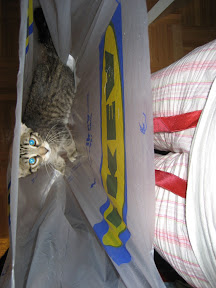
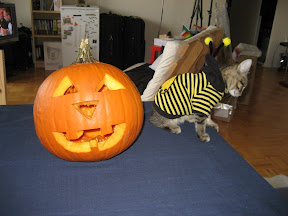
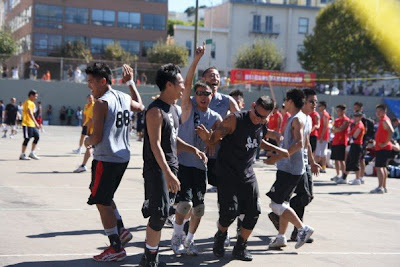
There are a couple new features, some performance tweaks, and some bug fixes. The coolest new feature is the ability to add photos from the web. Just give it *any* webpage that has pictures on it and Shape Collage will automagically download the pictures from that webpage for use in the collage! This does not however, work for sites that require you to login, like Facebook, but that's what FaceDown is for.
Other new features include the ability to adjust the rotations of the photos and the drop shadow. The program settings are now saved between sessions so if you like the settings a certain way, you don't have to set them every time.
I promise that this blog is not becoming an advertisement for Shape Collage and VincentCheung.ca. I will be blogging about my vacation (eventually) :p
There are a couple new features, some performance tweaks, and some bug fixes. The coolest new feature is the ability to add photos from the web. Just give it *any* webpage that has pictures on it and Shape Collage will automagically download the pictures from that webpage for use in the collage! This does not however, work for sites that require you to login, like Facebook, but that's what FaceDown is for.
Other new features include the ability to adjust the rotations of the photos and the drop shadow. The program settings are now saved between sessions so if you like the settings a certain way, you don't have to set them every time.
I promise that this blog is not becoming an advertisement for Shape Collage and VincentCheung.ca. I will be blogging about my vacation (eventually) :p